Cameras
Cameras let you define fixed map viewpoints for use in video recordings.
You can add or edit cameras from the settings in the Cameras tab.
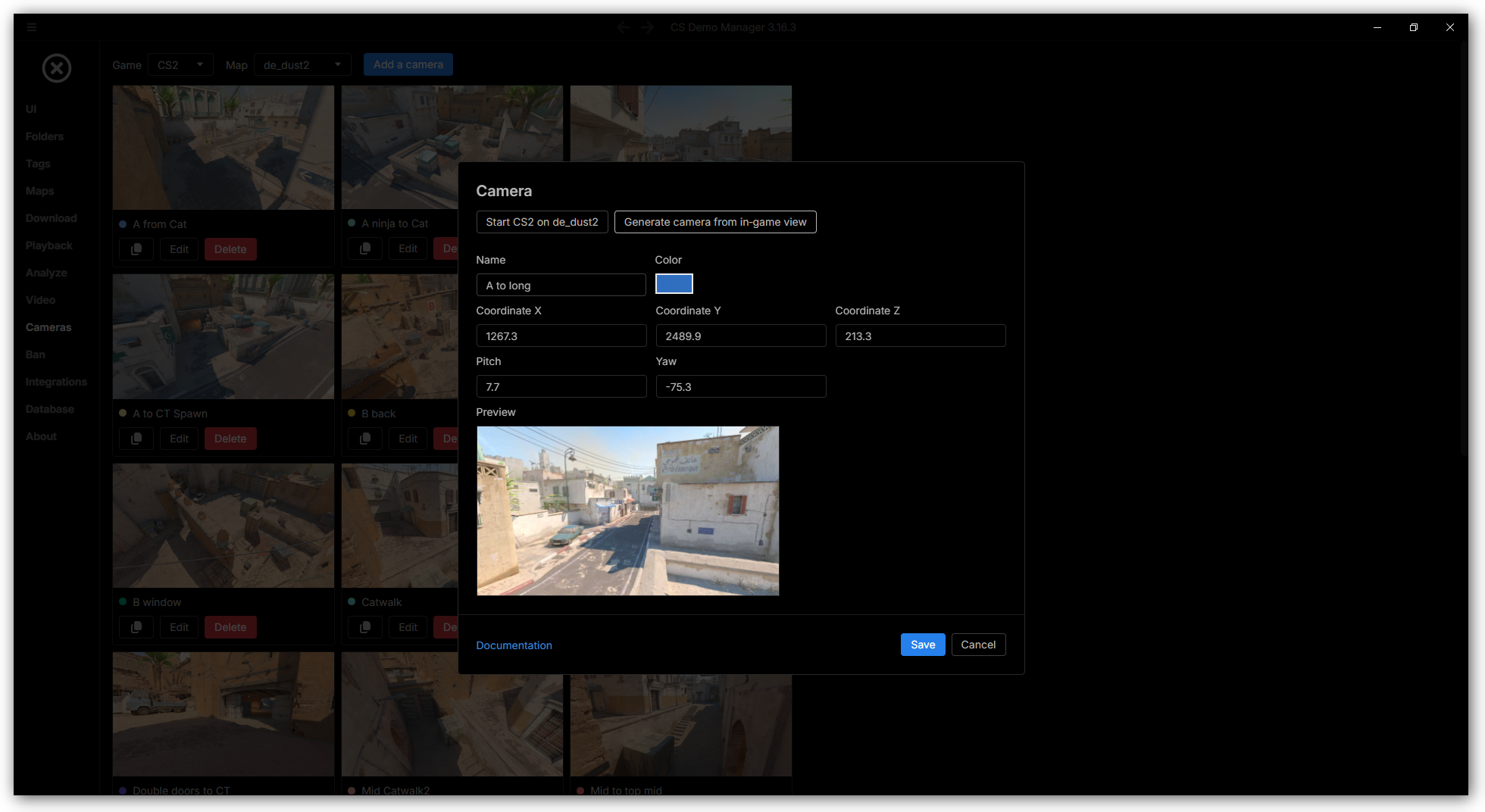
Fields
Name (mandatory)
The name of the camera is mandatory and must be unique for the given map and game.
Color (mandatory)
The color helps to identify the camera in the application.
Coordinates (mandatory)
Coordinates are defined by the x, y, and z, yaw and pitch values.
They correspond to the position and orientation of the camera in the game world.
You can get these values using the command spec_pos while being in spectator mode in-game.
Preview (optional)
The camera's preview is an image displayed in some application parts to help identify the camera.
It's optional and must be in PNG or JPG format.
Adding/Editing a camera
From in-game view
This is the recommended and easiest way to add a camera.
From the dialog to add or edit a camera:
- Click on "Start CS on map_name", it will launch the game on the selected map and you will be in spectator mode.
- Position the camera where you want.
- Go back to the application and click on "Get camera from in-game view", it will fill the coordinates fields and generate a preview image of the current in-game view.
- Set a name and optionally a color for the camera and save it.
warningThe game must be launched from the application using the button in step 1 for this to work!
Manually
You can fill in all the fields by yourself.
To get the coordinates, you can use the command spec_pos while being in spectator mode in-game.
Then copy the values into the corresponding fields in the application.
You can paste spec_goto, getpos, or getpos_exact command outputs directly into the coordinates field and it will extract the values automatically.