Download
CS:DM allows you to download your recent CS2 demos from official Valve Matchmaking, Valve share codes, and third-party services.
How to download demos
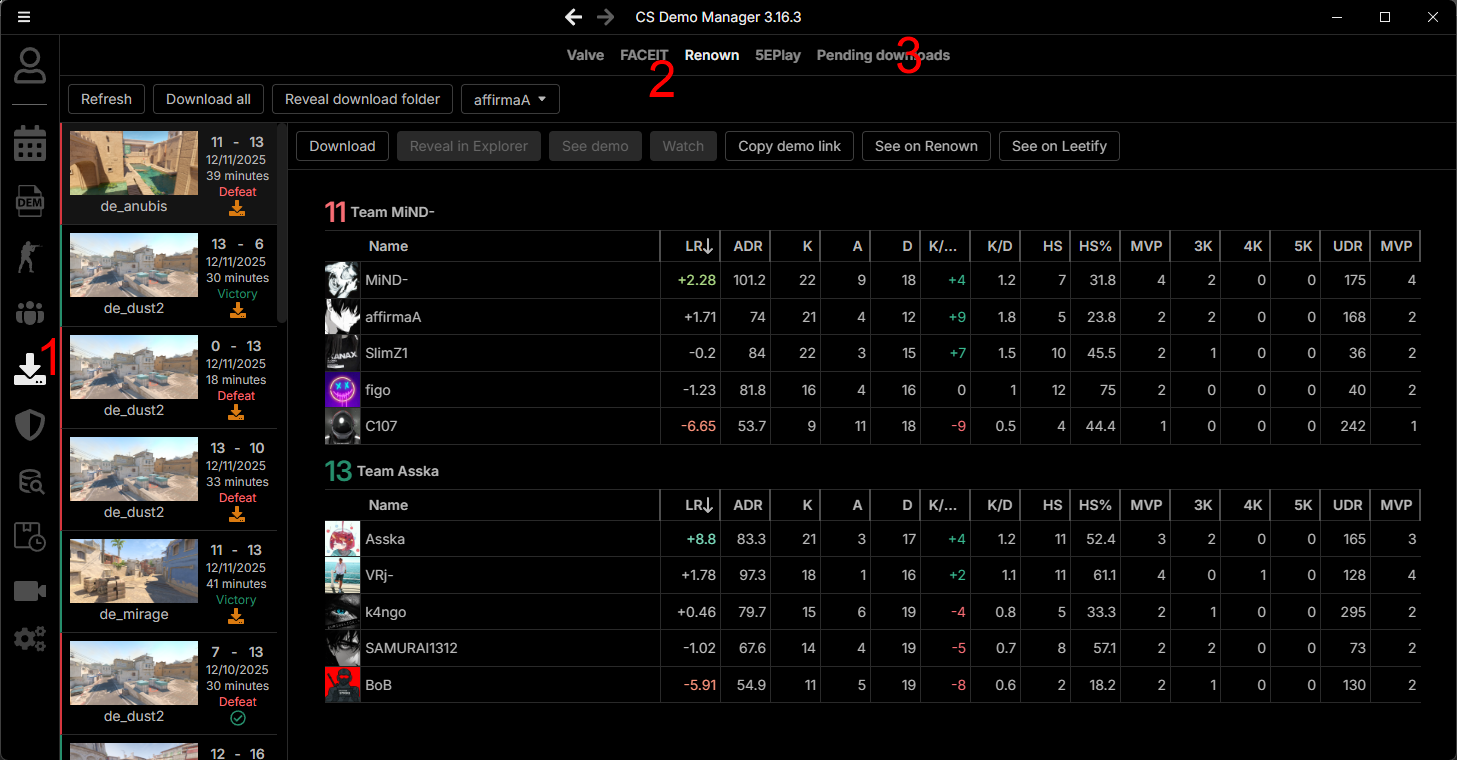
- Click on the Download button in the sidebar (1).
- By default, the Valve tab is selected. To download demos from third-party services, click on the corresponding tab (2).
- Select a match in the sidebar to view its details and click on the Download button.
- Click on Pending Downloads to monitor the download progress (3).
Click on Download All to download all available demos in the list.
Valve
To view your last 8 Valve Matchmaking matches and download their demos, open the Valve tab and click Continue.
CS:DM communicates with the Steam Game Coordinator to retrieve the recent matches for the Steam account currently logged in.
For this to work, Steam must be running and connected to your account. CS2 will be briefly launched in the background automatically to fetch data. Clicking Continue confirms you're okay with this.
Only the last 8 matches are available because the Steam Game Coordinator only provides this data.
Share Code
You can also download Valve demos from a match sharing code, to do so:
- Open the Pending Downloads tab.
- Click on Share Code.
- Copy/paste the share code in the input field and click Download.
The demo's download link for a match expires 1 month after the match ends.
CS:DM does not—and will never—ask for your Steam credentials.
FAQ
How can I download demos for my other accounts?
The application downloads demos for the currently logged-in Steam account.
You must switch to your other account on Steam.
Why does Steam close when I refresh my last matches?
If your Steam account is currently in-game on another computer, you must:
- Close the game on that computer.
- Restart Steam on your computer.
- Refresh your last matches on your computer.
I have the message "You are already connected to the CS game coordinator"
This message appears when your Steam account is currently in-game on this computer or another one.
You have to close the game on that computer and retry.
On Linux, you will see this message if you installed Steam using Flatpak!
You must install Steam using your distribution package manager.
FACEIT
FACEIT restricted demo downloads to a private API and provided us a server-side API key with the maximum rate limit.
This requires us to set up and maintain our own backend service to handle demo downloads.
There is no ETA for restoring in‑app downloads; in the meantime, please download demos from your browser (one extra click).
To view and download your recent FACEIT matches, open the FACEIT tab, enter your FACEIT nickname in the input field, and click Add.
To find your nickname, visit your FACEIT profile (e.g., https://www.faceit.com/en/players/YourNickname) and copy the last part of the URL (YourNickname).
You only need to do this once; you can add more accounts later from the application settings.
The nickname is case-sensitive.
Because in‑app downloads are temporarily unavailable, click "See on FACEIT" to open the match in your browser, then click "Watch Demo" to download the demo.
Renown
To view and download your recent Renown matches, open the Renown tab, enter your Steam ID64 in the input field, and click Add.
To find your Steam ID64, copy/paste your Steam profile URL in steamid.io and look for the SteamID64 value.
You only need to do this once; you can add more accounts later from the application settings.
5EPlay
To view and download your recent 5EPlay matches, open the 5EPlay tab, enter your 5EPlay ID in the input field, and click Add.
To find your 5EPlay ID:
- Log in to your 5EPlay account.
- Go to your profile page.
- Copy the last segment of the URL. For example, if your profile URL is
https://arena.5eplay.com/data/player/1111, your 5EPlay ID is1111.
You only need to do this once; you can add more accounts later from the application settings.
FAQ
My last demos are not downloading automatically
- Go to the Download view and verify that the demo links are not expired.
- Ensure at least one option to download demos at application startup or in the background is enabled.
- The CS:DM icon must be visible in the system tray. If it's not, the background process is not running.
- For Valve demos, Steam must be running and connected to your Steam account.